


Your deck is 200mb. Here’s what’s in there.
And how to fix it in 20 minutes.
Why is your deck so big?
The email fails. SharePoint gives up. And the deck takes eternity to open, while a roomful of potential clients die of boredom watching a blank screen.
A stable, transportable deck should be under 20MB. The rest is baggage: images, fonts, and embedded objects the slides are quietly hauling around.
Step one: Take a look inside
A .pptx is literally just a zip file.
Ideally, on a PC. Copy it. Rename the copy to .zip. Double-click. Go to ppt/media and sort by size.
That’s your diagnosis. Usually four or five images account for most of the weight, and at least one will surprise you: a 22MB photo from a slide deleted months ago, a lossless PNG screenshot, a logo supplied at 4000 pixels wide.
It takes 90 seconds. It works on Word files too.
Where the weight hides
Big photos, shrunk on the slide. Resizing a super-large photo doesn't help — PowerPoint keeps every pixel. It may look small. But the file size remains the same. Super-large!
Cropping that crops nothing. PowerPoint stores the whole photo behind the crop, in case you change your mind. Handy while designing. Expensive once you’ve finished.
PNG screenshots. Perfect for logos and line art. Wrong for a dashboard screenshot. One full-screen PNG can hit 8MB, and a JPEG at quality 80 looks identical on a projector at about 400KB.
Charts with a workbook inside. Paste from Excel with the workbook embedded and the whole thing comes along: every sheet, every pivot cache. Paste as a picture or a linked chart instead.
Fonts, all of them. The option at File > Options > Save decides whether you embed only the characters in use or the entire font. A full family of six weights can add 30MB on its own. Embed only the characters used, unless someone else needs to edit the text.
Video. 90 seconds of 1080p is 40MB before you’ve added a slide. Compress it first, or link it if the deck always runs from the same machine.
The slide master. Background photos on layouts count whether anyone uses the layout or not. Forty layouts with a 3MB photo each is 120MB, and you probably use six. Leftover masters from old templates do the same thing.
Why PowerPoint lets this happen
Blame a setting nobody sees. Go to File > Options > Advanced and scroll to Image Size and Quality.
Do not compress images in file. If it’s ticked, nothing is ever compressed.
Default resolution. The options run from 96ppi through 150 and 220 up to High Fidelity. 220ppi is a print setting for decks that live on screens.
Discard editing data. Tick it for finished decks. It bins the undo information stored with edited images.
These settings live in the file, not in PowerPoint. Fixing one deck doesn’t fix the next. Set them in your template and every deck inherits them.
Compress it properly
1 Click an image, then go to Picture Format > Compress Pictures.
2 Untick “Apply only to this picture”.
3 Tick Delete cropped areas of pictures.
4 Pick a resolution.
Which one?
150ppi usually cuts the file by 60 to 80 per cent, and nobody can see the difference.
Save a copy first. Compression happens on save and the original pixels are gone for good.
Use
Printed at A4 or bigger
Presented and emailed (most decks)
Read on a laptop, nothing more
Resolution
220ppi
150ppi
96ppi
When compressing makes it bigger
Yes, it can happen. And there are 2 main culprits:
Already-optimised JPEGs. A second round of lossy compression can make the file slightly bigger and the image slightly worse. The deck was fine.
Transparent PNGs. They can’t become JPEGs without losing the transparency, so PowerPoint keeps them as PNGs. Logos like this belong in the master as small optimised files, or better still, as vector shapes.
The real fix is your template
Everything above is first aid. Decks that never get fat were built on templates that made smart choices first.
Vector logos. A logo built from native shapes or placed as an EMF weighs a few kilobytes, stays sharp at any size and recolours with the theme. A 4000-pixel PNG weighs 2MB, sits on every layout and goes soft when scaled up.
Picture placeholders sized to the grid. Drop an image in and it fills the frame. No placeholder, and people paste and drag, which is how full-res photos end up scaled to a quarter size. Placeholders are a file-size feature as much as a design one.
Layouts for real life. Full-bleed. Half-page with a text panel. Three-across grid. Portrait for headshots. Give people the layouts they need and they stop improvising.
Backgrounds from shapes, not photos. Native shapes and gradients weigh next to nothing and scale to any aspect ratio, including the 4:3 one nobody remembers until a client asks.
Settings pre-configured. Get the compression defaults right in the template and they’re right from slide one.
Prep images before they reach the deck
The cheapest fix happens before anyone opens PowerPoint. Most photo libraries are full of print-resolution originals nobody has ever prepared for screens.
Set some export rules:
• Full-bleed background (16:9): 1920px wide
• Half-slide image: about 1200px
• Headshot: 600px
• Photos: JPEG, quality 80
• Transparency only: PNG
• Graphics: SVG or native shapes
Export once into a “presentation” folder next to the originals and point everyone at it. Right-sized images in right-sized placeholders make small decks by default. Nobody has to remember a compression step at the end.
Same goes for anything arriving from outside. That client logo from a press kit at 5000 pixels? Ten seconds of resizing now saves an awkward conversation in a fortnight.
Why it matters
Email. Most gateways reject anything over 20 to 25MB. So the deck goes out as a link, someone downloads it, edits their copy, and now there are two versions.
Collaboration. A 200MB deck co-authored by four people in SharePoint means conflict copies. Conflict copies mean the wrong version goes to the client.
The room. A deck that takes 40 seconds to open in front of a prospect says something about how you work. Nobody mentions it. Everyone notices.
The 20-minute clean-up
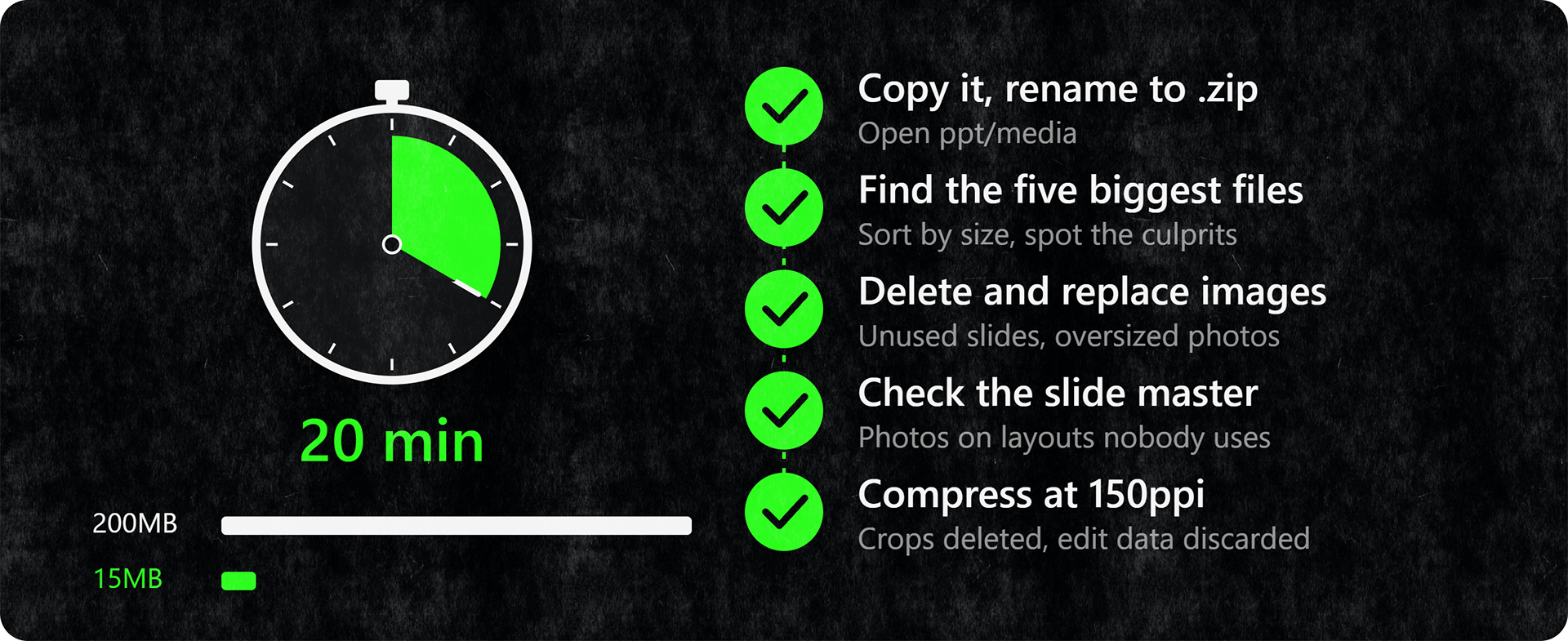
Got a problem deck open right now?
Copy it and rename the copy to .zip.
Open ppt/media and find the five biggest files.
Back in the original, delete anything unused and replace the oversized images.
Check the slide master for background photos on layouts nobody uses.
Run Compress Pictures at 150ppi, with cropped areas deleted and editing data discarded.
Most decks go from 200MB to under 20MB. On screen, nobody can tell.
Then look at the template it came from, because whatever caused this will do it again next quarter.
Not sure what your template is doing to your files? Request a template health check. You’ll work directly with design directors, and we’ll tell you what’s worth fixing.